whid

What happens if you forget your iPhone passcode?

Forget your iPhone passcode and you'll see "iPhone Unavailable" after a few wrong guesses. There is no back door: the only way in is to erase the phone and restore a backup. Here's what happens at each step and how to keep your data safe.

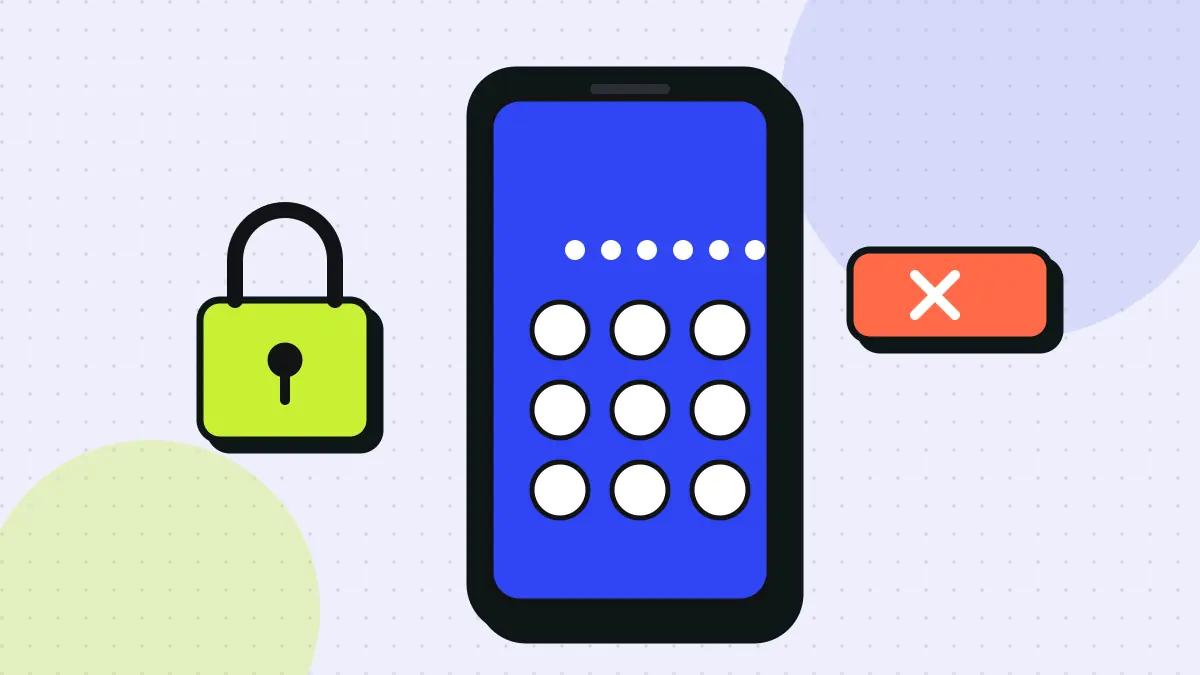
Illustration of a locked smartphone with a keypad, a padlock and a red unavailable warning
Illustration: whid
Damage scale 3/5 Costly
How fastLockout after 5 wrong attempts
Can you undo it?Only by erasing the iPhone
Typical cost$0 — but data without a backup is lost

The short answer

After five wrong passcode attempts, your iPhone shows "iPhone Unavailable" with a waiting time, and each extra wrong guess makes the wait longer. Apple can't unlock it for you. The fix is to erase the iPhone — on iOS 17 or later you can tap Forgot Passcode? and reset it with your Apple Account password, otherwise you use recovery mode on a computer. Then you restore from an iCloud or computer backup. Anything not backed up is gone. If you changed the passcode in the last 72 hours, iOS 17 also lets you unlock with the previous passcode.

On this page 12 sections
  1. Step by step
  2. Why Apple can't just unlock it
  3. What the lockout looks like
  4. Resetting the phone without a computer
  5. Resetting with a computer
  6. Getting your data back
  7. Activation Lock
  8. Your options at a glance
  9. What to do now
  10. Myth vs fact
  11. Reader stories
  12. Quick questions

01 What happens, step by step

  1. Attempts 1–5

    Normal retries

    You can try several passcodes without any delay.

  2. After 5 wrong tries

    "iPhone Unavailable"

    The phone locks for one minute. More wrong attempts increase the lockout to 5, 15 and then 60 minutes.

  3. After more failures

    Security Lockout

    Eventually no more attempts are allowed. On recent iOS versions a Forgot Passcode? option appears in the corner.

  4. Reset

    Erase the iPhone

    Using your Apple Account password on the phone, or recovery mode on a Mac or PC, the device is wiped and iOS reinstalled.

  5. Restore

    Get your data back

    Sign in and restore from an iCloud or computer backup. Activation Lock means you need your Apple Account to use the phone again.

It happens more often than people admit: a new passcode set late at night, a phone that's usually unlocked with Face ID, or an old device pulled out of a drawer. After a few wrong guesses the screen changes, and suddenly you can't get in at all.

Why Apple can't just unlock it

Your iPhone's passcode isn't only a lock screen — it's part of the encryption key that protects your data. Without it, the data on the phone can't be decrypted. That's why Apple says it can't remove the passcode for you, and why there's no secret code a store can enter. The only way back in is to erase the device and start fresh.
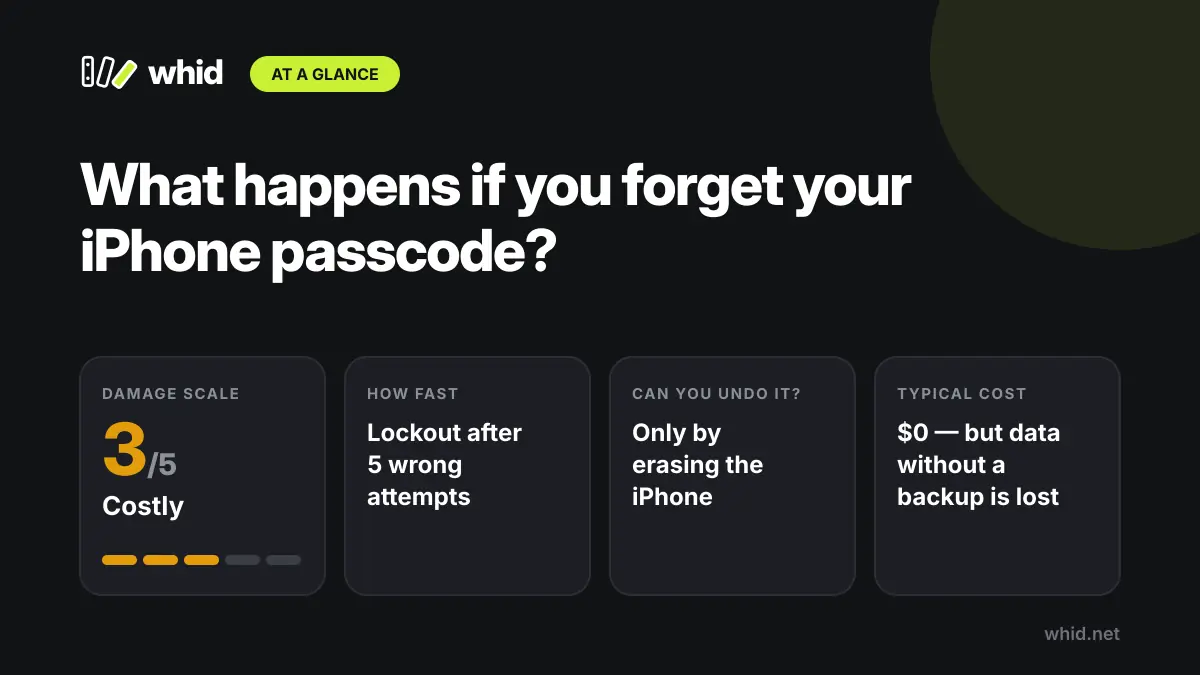
At a glance: What happens if you forget your iPhone passcode? Damage scale 3/5 (Costly); how fast: Lockout after 5 wrong attempts; typical cost: $0 — but data without a backup is lost.
At a glance: the damage rating, how fast it happens, whether it can be undone and what it usually costs.

What the lockout looks like

After five wrong attempts, the screen shows "iPhone Unavailable" and asks you to try again in a minute. More wrong attempts add longer delays, and after enough failures the phone stops accepting guesses. If the "Erase Data" setting is turned on, ten failed attempts wipe the phone automatically.
Changed it recently? On iOS 17 or later, you can unlock with your old passcode for 72 hours after changing it. Tap Forgot Passcode? and choose Enter Previous Passcode.
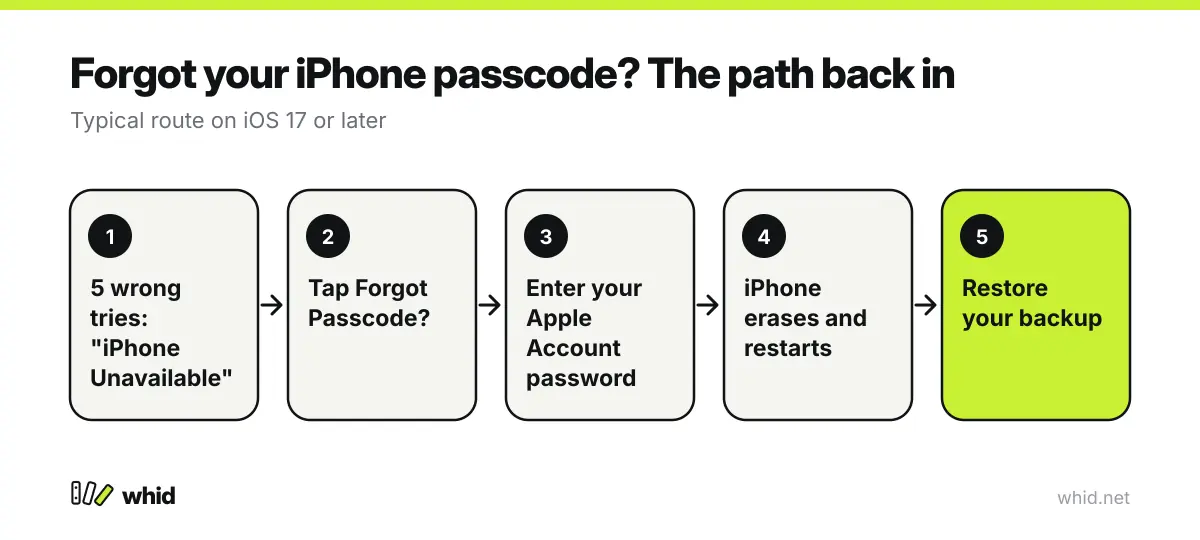
Five-step diagram for recovering a forgotten iPhone passcode: lockout, Forgot Passcode, Apple Account password, erase, restore backup
Without a passcode, erasing and restoring a backup is the only way back in.

Resetting the phone without a computer

On iOS 15.2 or later, with the phone connected to Wi-Fi or mobile data, an Erase iPhone or Forgot Passcode? option appears on the lockout screen. Tap it, confirm with your Apple Account password, and the phone erases itself. This is the quickest route and doesn't require any cables.

Resetting with a computer

If no erase option appears, you need a Mac or a Windows PC. Turn the iPhone off, connect it while holding the button for your model to enter recovery mode, then choose Restore in Finder, the Apple Devices app or iTunes. The computer downloads iOS and reinstalls it. If the download takes longer than 15 minutes, the phone may exit recovery mode — let the download finish and start again.

Getting your data back

Once the phone is erased, you set it up like new and choose Restore from iCloud Backup or Restore from Mac or PC. Photos, messages and contacts synced to iCloud reappear when you sign in. Anything that only lived on the phone since your last backup is lost — which is why automatic iCloud backups are worth turning on today.

Activation Lock

After an erase, Find My's Activation Lock asks for the Apple Account that was on the phone. This is what stops stolen iPhones from being reused — and it's why you need your Apple Account password, not just the passcode, to get going again.


02 Your options at a glance

Steps differ slightly by iPhone model and iOS version. Follow Apple Support's current instructions.

SituationWhat you can doDo you keep your data?
Changed passcode in the last 72 hours (iOS 17+)Tap Forgot Passcode? → Enter Previous PasscodeYes
iOS 15.2+ and phone connected to a networkTap Forgot Passcode? / Erase iPhone and use your Apple Account passwordOnly what's backed up
No erase option on screenPut the iPhone in recovery mode and restore with a computerOnly what's backed up
Forgot your Apple Account password tooReset it at iforgot.apple.com or use account recovery firstOnly what's backed up
No backup at allYou can still erase and set up the phoneNo — local data is lost

03 What to do right now

  1. Stop guessing after a few tries. Each wrong attempt adds a longer lockout, and the Erase Data setting may wipe the phone after ten.
  2. Try your previous passcode if you changed it recently. On iOS 17+, this works for 72 hours.
  3. Make sure you know your Apple Account password. Reset it at iforgot.apple.com first if needed.
  4. Erase via Forgot Passcode? or recovery mode. Use Apple Support's steps for your model.
  5. Restore from your latest backup. Then turn on automatic iCloud Backup so it never costs you data again.

04 Myth vs fact

Myth An Apple Store can unlock my iPhone without erasing it.

Fact Apple cannot bypass the passcode. Stores can only help you erase and restore it.

Myth Third-party "unlock" apps can recover your data.

Fact Paid unlock tools generally just erase the phone — the same thing you can do for free — and some are scams.

05 Has this happened to you?

Real experiences from readers. Stories are checked by an editor before they appear and are not professional advice.

No reader stories yet — be the first to share yours.

Share what happened to you

By sending, you agree that we may publish your story (first name and location only). See our privacy policy.

06 Quick questions

How many passcode attempts do you get on an iPhone?

You get five free attempts. After that, the iPhone becomes temporarily unavailable, with longer waits after each further mistake.

Can I unlock my iPhone without losing data?

Only if you remember the passcode or changed it within the last 72 hours on iOS 17 or later. Otherwise the phone must be erased, and you restore from a backup.

Does erasing the iPhone remove Activation Lock?

No. You still need the Apple Account and password that were used on the phone to set it up again.

Sources

  1. Apple Support — If you see an iPhone unavailable message or Security Lockout screen
  2. Apple Support — If you forgot your iPhone passcode (recovery mode)
  3. Apple Support — Back up your iPhone

General information only. Laws, prices and procedures vary by location and change over time — check with a qualified professional for your situation. Full disclaimer.